Installing a new Android app takes only a few seconds, but choosing the wrong app can create privacy, security, and performance problems. A useful way to reduce risk is to review the app’s permissions before giving it access to your phone.
Permissions tell you which device features and personal information an app wants to use. This guide explains how to evaluate them in practical terms, especially when downloading unfamiliar utility, gaming, AI, or entertainment apps.
What Are Android App Permissions?
App permissions are requests to access features such as the camera, microphone, location, contacts, photos, files, notifications, or phone functions. Some permissions are necessary for an app’s main feature, while others may be unrelated.
For example, a navigation app may need location access, and a video-chat app may need the camera and microphone. A basic wallpaper app normally has no obvious reason to read your contacts or record audio.
Check the App Before Installation
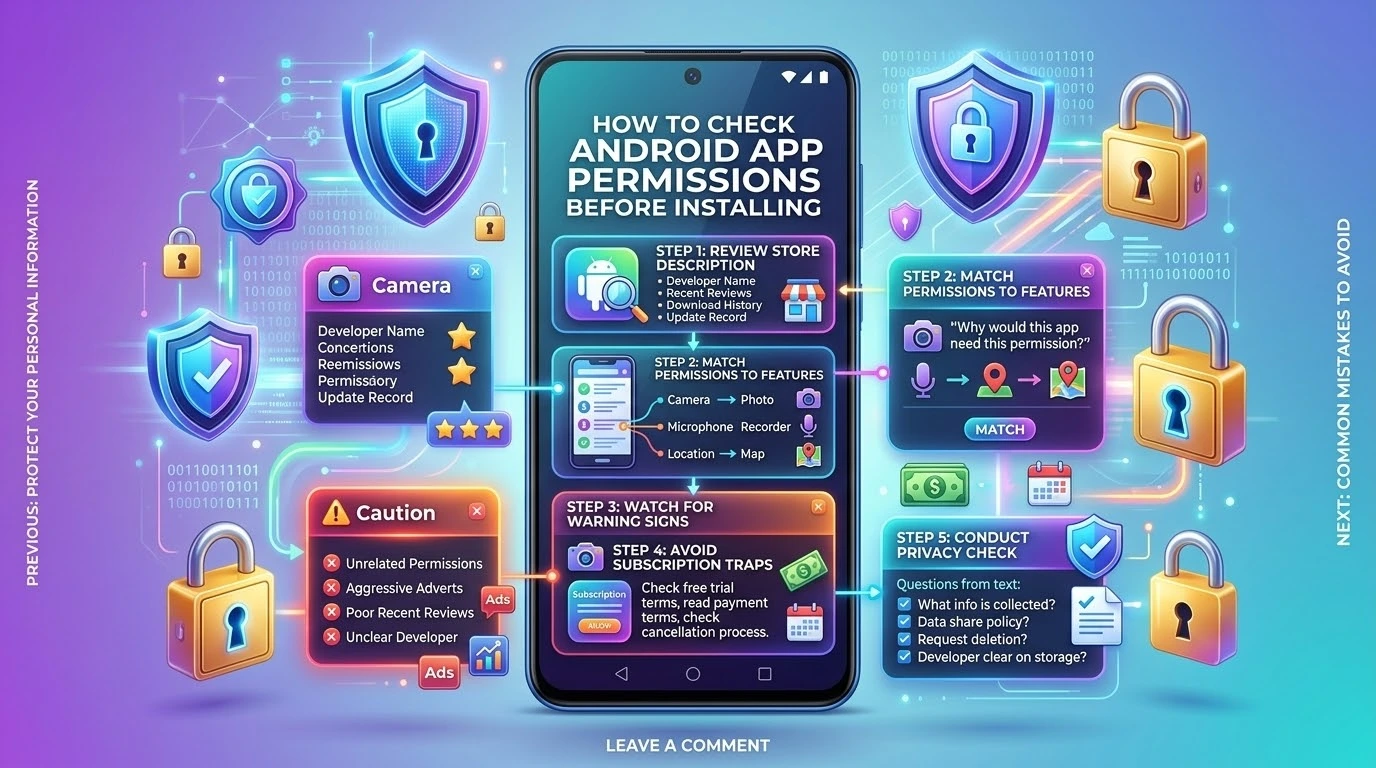
Review the app’s store description, developer name, recent reviews, download history, privacy information, and update record. Be careful with apps that copy the name or icon of a well-known product.
For AI and gaming apps, pay particular attention to requests for microphone, storage, contacts, accessibility controls, and notification access. These permissions can provide broad access to information on a device.
Match Each Permission to the Main Feature
Ask a simple question: “Why would this app need this permission to perform its advertised function?” If the answer is unclear, do not grant access automatically.
- A camera app may need the camera and photo storage.
- A voice recorder may need the microphone.
- A map app may need location while in use.
- A contact-management app may need contacts.
- A simple calculator usually needs very limited access.
Some apps have optional features that require additional permissions. You can often deny those permissions until you decide to use the feature.
Use the Least Access Necessary
Give an app only the access it needs. If Android offers choices such as “Allow only while using the app,” prefer that option when permanent access is not necessary.
For photos and files, choose selected items rather than your entire library where possible. Review access again after major app updates because features and permission requests can change.
Review Permissions After Installation
Open your Android settings, find the app, and review its permissions. Remove access that is unnecessary. If an app stops working because you denied a permission unrelated to its main purpose, consider uninstalling it and choosing a better alternative.
Also review apps that have access to notifications, accessibility services, device administration, or the ability to appear over other apps. These controls can be powerful and should be granted only when you understand the reason.
Warning Signs of an Untrustworthy App
Be cautious when an app requests many unrelated permissions, uses a misleading description, has poor recent reviews, comes from an unclear developer, or displays aggressive adverts. Sudden battery drain, overheating, unusual data use, browser redirects, and unknown notifications after installation are also warning signs.
If you notice suspicious behaviour, revoke permissions, uninstall the app, update Android, and run a security check. Change important passwords if you entered sensitive information into the application.
Free Apps and Subscription Traps
A free download may include adverts, in-app purchases, or an automatically renewing subscription. Read the payment terms before starting a trial and check the cancellation process.
Do not download cracked or modified versions that promise free premium features. These files may include harmful code or steal account information.
Privacy Questions to Ask
- What information does the app collect?
- Does it share data with advertising or analytics companies?
- Can you request deletion of your account and information?
- Does the app need an account for its main feature?
- Is the developer clear about how data is stored?
Do not upload confidential work documents, identity records, private messages, or financial information unless the service has appropriate security and privacy protections.
Frequently Asked Questions
Should I allow every permission an app requests?
No. Allow only permissions that are necessary for features you intend to use. You can often change permissions later in Android settings.
Are popular apps always safe?
Popularity is not a guarantee. Review permissions, privacy information, recent user feedback, and changes introduced by updates.
What if an app refuses to work without an unrelated permission?
Consider whether the permission is genuinely needed. If it is not, remove the app and look for a more transparent alternative.
Final Thoughts
Checking permissions before installation is a quick habit that can protect your privacy and improve your phone’s security. Compare the requested access with the app’s real purpose, choose limited access where possible, and review permissions regularly.
A trustworthy app should explain why it needs access and should not pressure users into granting unrelated permissions.
📖 Also Read: Must-Have AI Tools to Boost Productivity in 2026
https://appsolvehub.com/best-ai-productivity-tools-for-students-and-professionals-2026/